How to Scan a Passport on iPhone (and Both Sides of an ID)
 Scanpaper Team 10 min read
Quick answer
To scan a passport on iPhone for free, open Notes, create a note, tap the paperclip (or camera) button and choose Scan Documents. Hold the phone over the photo page until it captures, tap Keep Scan, then Save. Open the scan, tap Share and choose Save to Files to get a PDF. Files has the same scanner under its More menu. For an ID card, scan the front, flip it and scan the back: the built-in scanner puts them on two pages. If a form wants both sides on one page, use a scanner app with an ID card mode. Adding a passport to Apple Wallet as a Digital ID is a separate feature.
In this guide
- First, which kind of passport scan do you need?
- How to scan a passport on iPhone with Notes (free)
- Scanning both sides of an ID card on iPhone
- How to scan your ID or passport on iPhone with Scanpaper
- Make the copy legible for a visa, rental or HR form
- Where your ID copies are stored on iPhone
- Keep ID copies private and delete what you don’t need
Learning how to scan a passport on iPhone takes about a minute, because the scanner is already built into Notes and Files. The harder parts come after: making a copy a visa officer or landlord can read, fitting both sides of an ID card on one page, and knowing where the copies end up once you’ve sent them.
This guide covers passports, driver’s licenses and national ID cards, with steps that work on iOS 17 through 27.
First, which kind of passport scan do you need?
Search results for this question mix up three different jobs. Pick yours before you start.
- A copy of the photo page (PDF or image) for a visa application, a lease, a new job or a hotel booking. That’s what the rest of this guide covers.
- A Digital ID in Apple Wallet. With an unexpired US passport and an iPhone 11 or later on iOS 26.1 or later, you can add your passport to Wallet. Apple says it works only at select TSA checkpoints for domestic travel and can’t be used instead of a passport for international travel or border crossings.
- Reading the passport chip inside an airline or government app. Some apps ask you to hold the iPhone against the passport so they can read its chip. Follow that app’s own prompts; a PDF won’t help there.
How to scan a passport on iPhone with Notes (free)
The scanner in Notes finds the page edges, straightens the shot and saves it as a PDF inside the note. Apple’s own steps for the Notes and Files scanner match the ones below.
- Open the passport to the photo page. Lay it flat on a dark, matte table and press along the spine so the page doesn’t curl.
- Open Notes and create a new note.
- Tap the paperclip button and choose Scan Documents. Depending on your iOS version, it may be a camera button instead, or under More (the three dots) as Scan.
- Hold the iPhone square above the page. In Auto mode it captures as soon as it finds the edges. In Manual, tap the shutter or press a volume button.
- Drag the corners if the crop cut anything off, tap Keep Scan, then Save.
- To get a PDF out, open the scan in the note, tap Share and pick Save to Files, Mail or Messages.
If you’d rather have the file land straight in a folder, use Files: tap More (the three dots), then Scan Documents. When you tap Save, Files asks where to put the PDF.
On iOS 26, both apps let you set flash and a filter before you scan. Set the flash to off for passports, since the laminate throws back a white streak.
When the form wants more than the photo page
Some visa and residence forms also ask for the page with your signature, a previous visa or your entry stamps. You don’t need a separate file for each. Stay in the same scanning session, turn to the next page the form names and capture again, so every page lands in one PDF in the order you shot them.
Then give the file a name the person on the other end can recognize. Long-press the PDF in Files, tap Rename and use something like Lopez-passport-photo-page-2026-10.pdf. A file called Scan 14.pdf in a crowded inbox is the one that gets missed.
Scanning both sides of an ID card on iPhone
Driver’s licenses and national ID cards have information on both sides. With the built-in scanner, scan the front, flip the card on the same spot and scan the back before you tap Save. You get one PDF with two pages.
Many uploads accept that. Some forms, though, ask for a copy that shows both sides on a single page, the way a photocopier does it when you copy one side, flip the card and copy the other half of the glass. The built-in scanner can’t put two captures on one page, so you’d need an app with an ID card mode for that layout.
The back of many US driver’s licenses is mostly a barcode and fine print. Scan it as carefully as the front: a blurry back is still a blurry copy.
How to scan your ID or passport on iPhone with Scanpaper
If you need the one-page layout, or you’d like the copy to stay in an app that doesn’t sync anywhere, here’s the flow in Scanpaper. It works the same on Android.
- Put the card on a dark surface, away from overhead lights.
- Open Scanpaper, go to the Tools tab and tap ID Card (“Both sides on one page”), or tap ID card on the home screen.
- Fit the card into the frame on screen. With auto capture on, it shoots once the card holds still.
- When the screen says “Now scan the back side”, flip the card and let it capture again.
- Scanpaper places the front and back on one portrait page, centered, with a gap between them. Keep the Original or Auto filter so the photo stays in color, then export as PDF or JPG, or share it to Mail, or save it to Files for a browser upload.
For a passport, choose Passport mode instead. It shows a frame shaped for the photo page, so you line the page up rather than guess at the edges.
ID card and Passport modes are Pro (there’s a free trial). On the free tier you can still scan a passport page in Document mode, up to 3 documents in the library. Free PDFs carry a small grey “Scanned with Scanpaper” line in one corner, which Pro removes.
Make the copy legible for a visa, rental or HR form
A scan that looks fine on your phone can be unreadable on a caseworker’s screen. Here’s the routine that avoids a second request.
To make a legible passport or ID copy on iPhone, lay the document on a dark, matte surface next to a window and turn the flash off. Flash reflects off the laminate and hologram as a white patch over your details. Hold the phone parallel to the page so the document fills most of the screen, with all 4 corners visible.
Keep the copy in color, since a black-and-white filter can turn the face photo into a dark block. Then open the PDF and zoom into the smallest print. On a passport, that’s the machine-readable zone: the 2 lines of letters, numbers and < signs along the bottom of the photo page.
If every character there is crisp, the rest of the page will be readable too; if any are smeared, rescan. Last, compare the file size with the upload form’s limit before you submit.
Two more habits help:
- Check the form’s instructions first. Format, color, file size and whether both sides are needed vary by agency, landlord and employer. This guide can’t tell you what any one of them accepts.
- Shrink oversized files without crushing them. If a portal rejects the upload for size, our free compress PDF tool runs in your browser and shows the before and after size. In Scanpaper, the Small (“email friendly”) export setting does the same on the phone (Pro).
Where your ID copies are stored on iPhone
Every route leaves a copy somewhere. Here’s where to look.
- Photos. If you snapped the passport with the Camera app, the picture sits in your library. With iCloud Photos on, it syncs to iCloud and your other devices.
- Notes. The scan lives inside the note. If the note is in your iCloud account (rather than On My iPhone), it syncs along with your other notes.
- Files. It’s wherever you tapped Save: iCloud Drive syncs, On My iPhone stays on the phone.
- Mail and Messages. Every copy you send stays in your Sent folder or the conversation, and in the recipient’s inbox.
- Scanpaper. Documents stay in the app on the phone. There’s no account and no cloud, so a scan leaves only when you share or export it.
Note which of these you used before you send a passport copy. Each one is a place you’ll clean up later.
Keep ID copies private and delete what you don’t need
An ID copy is useful to whoever has it, so treat each one like the card itself.
- Black out what the recipient doesn’t need, only if the form allows it. Scanpaper’s markup has a hide tool that covers a field with a solid block, and it’s free. Ask first; some checks need the full number.
- Mark the purpose on the page. A watermark such as “For apartment application, Oct 2026” repeated across the copy makes it harder to reuse for something else. Scanpaper adds watermarks on export (Pro).
- Lock the file when you email it. A password-protected PDF can’t be opened without the password; send the password by a different route, such as a text. Scanpaper sets PDF passwords on export (Pro), and its app lock (PIN or Face ID, Pro) keeps the library itself shut.
- Use the official upload page when the landlord, employer or agency has one, rather than a chat app.
Once the application is done, delete the copies. Clear them from Photos, then from the Recently Deleted album, where Apple keeps deleted photos for 30 days.
Delete the note or the PDF in Files, and the attachment in your Sent mail if you won’t need it. In Scanpaper, deleting a document is immediate and can’t be undone, so export anything you want to keep first.
If you scan documents often, our guide to the iPhone scanner to PDF covers filters and multi-page scans, and the ID card scanner feature page shows the one-page layout in more detail.
Frequently asked questions
Can my iPhone scan my passport?
Yes. The document scanner in Notes and Files captures the passport photo page as a PDF, with no app to install. Lay the passport flat, turn the flash off so the laminate doesn't glare, and check that the two lines of characters at the bottom of the photo page are sharp before you send it.
Can I upload my passport to my phone?
If you have an unexpired US passport and an iPhone 11 or later on iOS 26.1 or later, you can add it to Apple Wallet as a Digital ID. Apple says it works at select TSA checkpoints for domestic travel only and can't replace your passport for international travel. A scanned PDF copy is a different thing: it's a picture for forms, not an ID.
How do you scan both sides of an ID card?
In Notes or Files, scan the front, flip the card and scan the back in the same session. You get one PDF with two pages. If the form asks for both sides on a single page, use a scanner app with an ID card mode, which captures front and back and places them one above the other on one page.
How do you scan your ID on one page?
The iPhone's built-in scanner gives each side its own page, so it can't do this alone. Scanpaper's ID card mode (Pro) asks for the front, then the back, and composes both on one portrait page with a gap between them. Export it as a PDF or JPG and check that both sides are readable at full zoom.
Is there a free ID scanner on iPhone?
Yes. Notes and Files both have a free document scanner that handles ID cards and passports, as two-page PDFs. Scanpaper's free tier also scans IDs in Document mode, up to 3 documents, with a small 'Scanned with Scanpaper' line on exports. The front-and-back-on-one-page ID card mode is part of Pro.
Is it safe to keep a scan of my passport on my phone?
It's as safe as the place it's stored. A photo in your library syncs to iCloud if iCloud Photos is on, and a note in your iCloud account syncs too. Keep only the copies you need, protect PDFs you send by email with a password, and delete old copies, including from Recently Deleted.
How do I scan my passport size photo?
That's a different task. A passport-size photo is a new picture of your face that has to meet the issuing country's photo rules, so it's usually taken fresh, not scanned. To copy an existing printed photo, scan it like any document in Notes or Files and crop to the photo.
The bottom line
Notes and Files scan a passport photo page for free, and that's enough for most one-off copies. If a form wants both sides of an ID on one page, or you'd like the copies kept off the cloud and behind a lock, an app with an ID card mode saves the fiddling. Whatever you use, check the small print at full zoom before you send, and delete the copies once the application is done.
Related
- ID Card Scanner: Front and Back on One Page Scanpaper's ID card mode scans the front and back of an ID or driver's license onto one page. Passport mode frames the photo page. Stays on your phone.
-
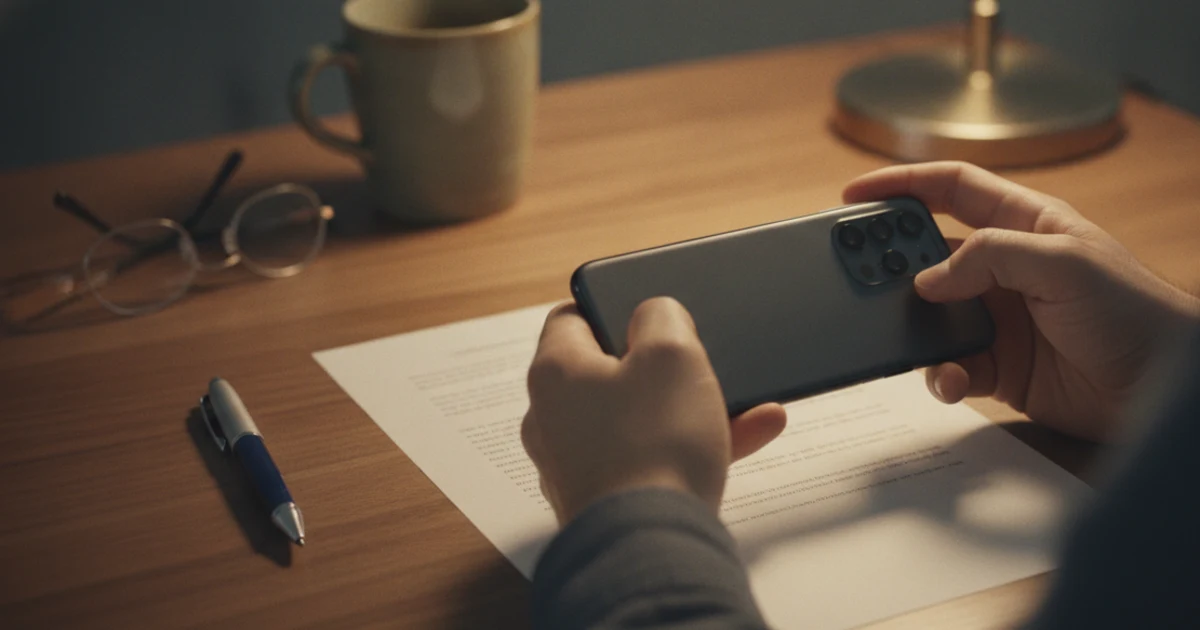 iPhone Scanner to PDF: How to Scan Paper in Notes or Files Use the iPhone scanner to PDF any paper page: exact steps in Files, Notes and Preview, how edges and filters work, and where the PDF is saved.
 - Compress PDF (free tool) Shrink a scanned PDF so it fits an email or upload limit.